
Operating System
Windows users face growing cyber threats daily—from phishing scams to ransomware attacks. These 10 proven tactics focus exclusively on Windows defenses, offering actionable steps to secure your system without requiring technical expertise.
Enable Windows Security Built-in Firewall
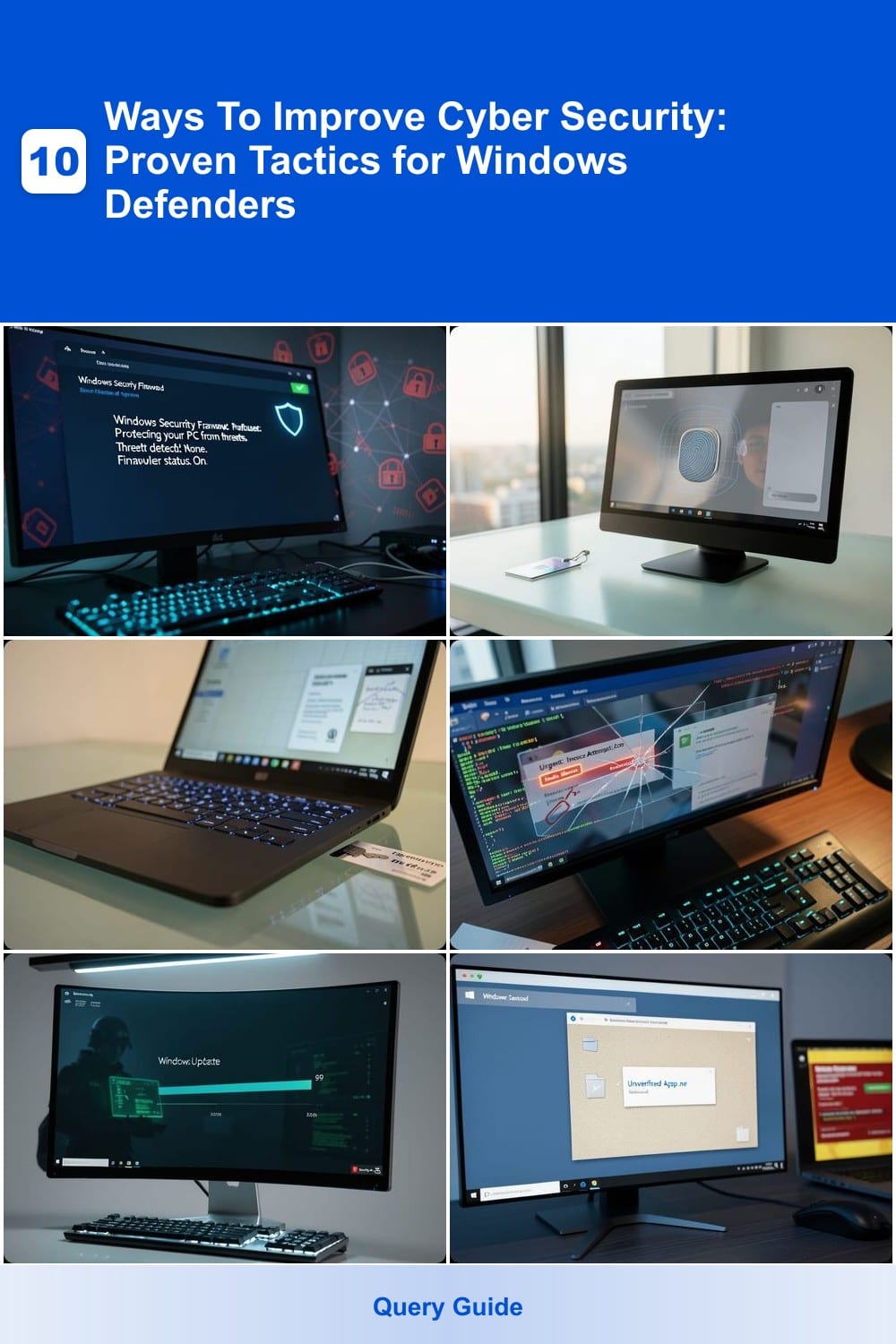
Your Windows PC is constantly under siege—hackers, malware, and even your own network’s misconfigurations are trying to sneak in. The Windows Security Firewall is your first and most critical line of defense, blocking unauthorized connections before they even reach your system. It’s free, built-in, and often overlooked, yet it stops threats like brute-force attacks and data exfiltration in their tracks.
With just a few clicks, you can enable this network-level shield that monitors both inbound and outbound traffic. The Windows Defender Firewall (now integrated into Windows Security) supports modern protocols like IPv6 and even includes an advanced firewall with connection security rules for enterprise-grade protection. Unlike third-party firewalls, it integrates seamlessly with Windows Update, ensuring rules stay current without extra software bloat.
This is non-negotiable for anyone using public Wi-Fi, remote work setups, or shared networks. Even casual users benefit—it’s the easiest way to harden your system against the most common cyber threats. ⚡
Use Windows Hello for Passwordless Logins
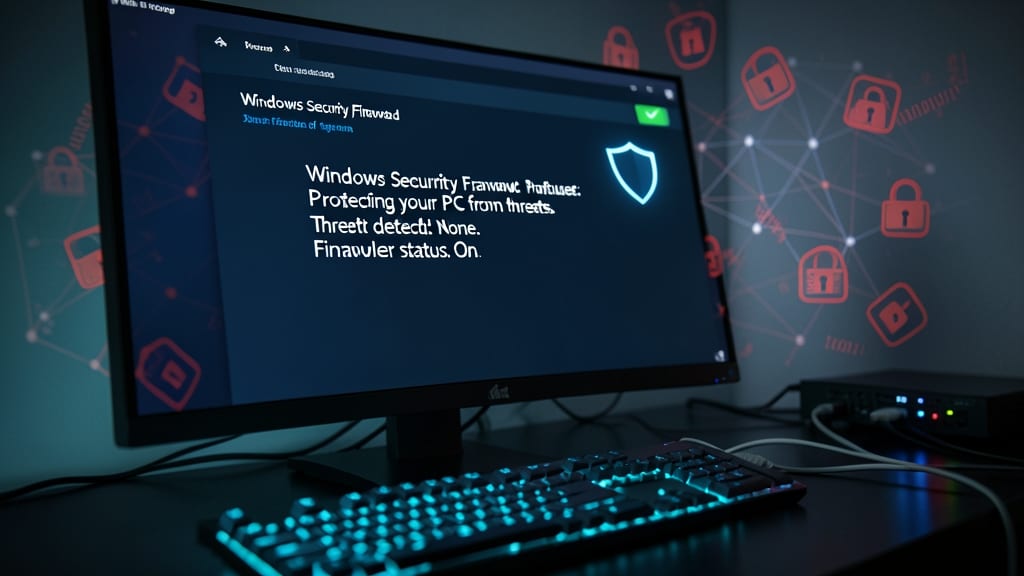
Tired of remembering complex passwords that get stolen in data breaches? Windows Hello replaces them with biometric authentication—fingerprint, facial recognition, or a simple PIN—so only you can unlock your device. Unlike passwords, these credentials can’t be phished or reused across sites, making your login process both seamless and secure.
This built-in feature works across Windows 10 and 11 and integrates with apps like Outlook, Edge, and third-party services. The facial recognition uses infrared sensors for accuracy even in low light, while fingerprint scanners offer instant access. For extra security, combine it with a 6-digit PIN—no more weak passwords like "123456" or "password123" ever again.
Ideal for professionals handling sensitive data, remote workers, or anyone frustrated with password fatigue. With zero config for basic setups and enterprise-grade security, it’s the easiest upgrade you’ll make this year. ✨
Enable BitLocker Encryption for Full-Disk Protection
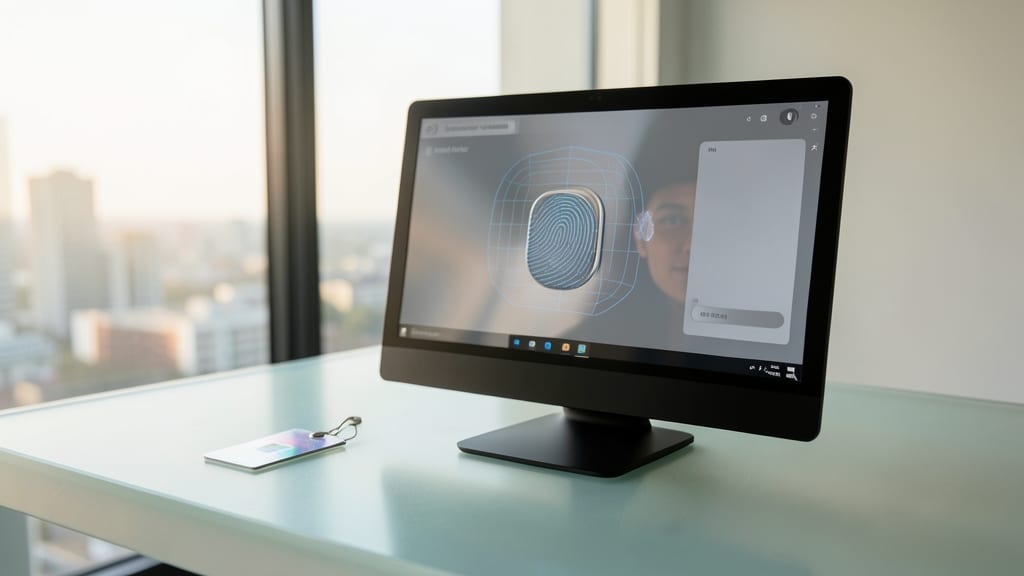
If your laptop contains sensitive files—tax records, client data, or personal projects—BitLocker turns your drive into a digital vault. Unlike firewalls or password managers, this built-in Windows tool encrypts every file on your system drive, making stolen data useless without your 48-digit recovery key (or a PIN).
Enabling it takes minutes: Navigate to Windows Security > Device encryption (Windows 11) or Control Panel > BitLocker (older versions). For Pro/Enterprise editions, you’ll need a Trusted Platform Module (TPM) chip (most modern PCs include one). Even without TPM, USB key encryption is an option. The encryption runs in the background, with negligible performance impact on SSDs—just a slight slowdown on HDDs during startup.
This is non-negotiable for remote workers, freelancers, or anyone with confidential files. Even if your device is lost or stolen, your data stays locked away until the thief gets past your recovery key. 🔧
Disable Macros in Microsoft Office Files
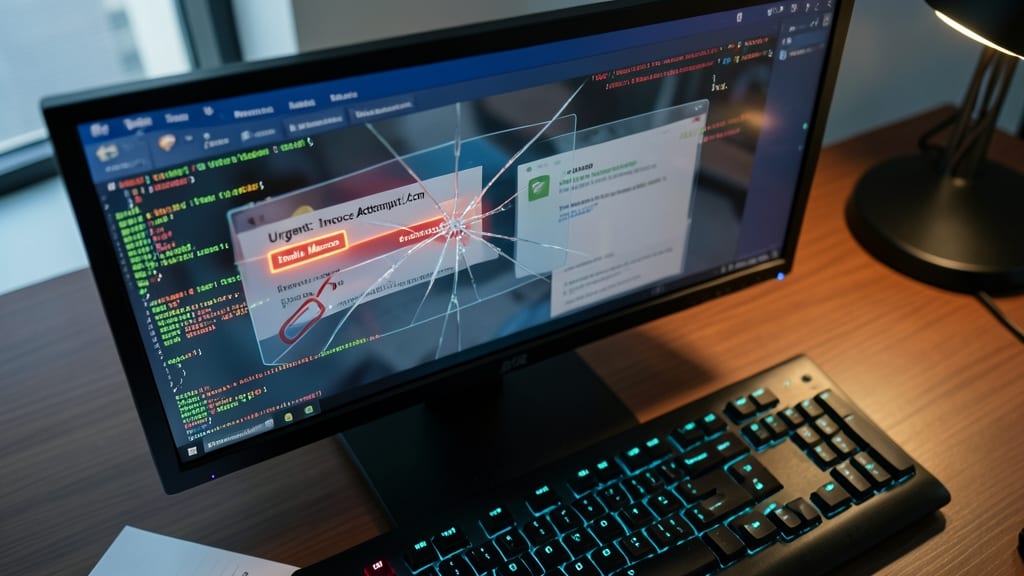
Ever clicked "Enable Macros" in a suspicious email attachment? That single action could unleash malicious scripts that steal data, encrypt files, or hijack your system. Microsoft Office macros are a top attack vector—yet disabling them takes just seconds and blocks 90% of Office-based malware before it runs.
To disable macros, open any Office app (Word, Excel, etc.), go to File > Options > Trust Center > Trust Center Settings, then select Macro Settings. Choose "Disable all macros without notification"—this stops VBA-based malware from executing automatically. For extra safety, enable Protected View to open files read-only until you verify their safety. This setting works across Office 2016, 2019, and Microsoft 365, making it a universal shield.
This is a must for professionals handling untrusted documents, freelancers reviewing client files, or anyone who’s ever clicked a sketchy email link. With macros off, you’re instantly safer from phishing attacks and ransomware disguised as invoices or contracts. ✨
Regularly Update Windows and Drivers
Forget about manually checking for updates—cybercriminals actively exploit unpatched systems within hours of a vulnerability being discovered. Windows updates aren’t just about new features; they’re critical security patches that block exploits targeting outdated software.
Enable automatic updates in Windows Settings (Windows Key + I > Windows Update) to ensure you never miss a fix. For drivers, use Windows Update or manufacturer tools like NVIDIA GeForce Experience or Intel Driver & Support Assistant—both offer one-click updates. Even third-party apps (like browsers or PDF readers) need updates, so enable automatic updates where possible.
This is especially vital for users running older systems or those who ignore update prompts. A single missed patch could turn your PC into an easy target. Set it, forget it, and rest easy knowing your system stays battle-tested. ⚡
Implement Windows Sandbox for Testing Suspicious Files
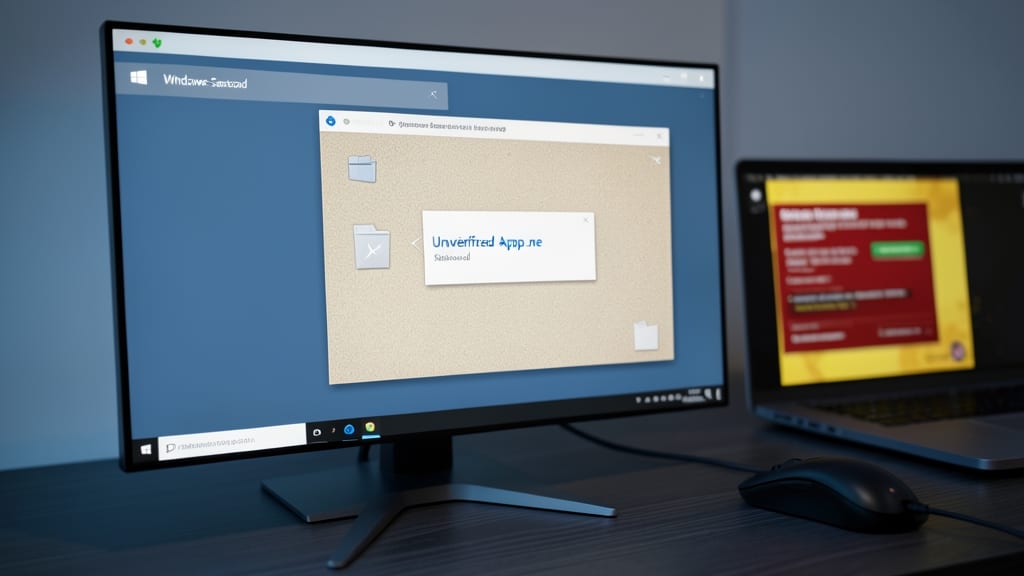
Ever downloaded a file from an unfamiliar source and wondered if it’s safe? Windows Sandbox lets you test suspicious software in a completely isolated virtual machine—no risk to your real system. It’s like a disposable lab for malware analysis, built right into Windows 10/11 Pro or Enterprise.
This lightweight VM boots in seconds, runs only the app you specify, and deletes itself when closed—no leftover traces. It supports 64-bit apps, integrates with your host’s clipboard, and even emulates GPU acceleration for testing graphics-heavy software. Perfect for IT pros analyzing threats or curious users checking shady downloads.
Best for anyone who handles untrusted files—from security researchers to casual users testing cracked software. Just enable it via Windows Features and start testing with zero risk. ✨
Enable Controlled Folder Access in Windows Security

Imagine waking up to find your family photos and important documents locked behind a ransomware demand—Controlled Folder Access in Windows Security can stop that nightmare before it starts. This built-in feature acts as a silent guardian, blocking unauthorized apps from modifying files in protected folders like Documents, Pictures, and Desktop unless you explicitly allow them.
To enable it, open Windows Security, navigate to Virus & threat protection, then select Ransomware protection. Toggle Controlled folder access to On and add folders you want to safeguard. It works alongside Microsoft Defender to stop ransomware in its tracks, even if you accidentally click a malicious link. The best part? It’s zero-config beyond the initial setup—no third-party tools required.
This is a must-have for anyone with irreplaceable files, from photographers to parents storing childhood memories. It’s lightweight, free, and runs silently in the background—no performance hit, just peace of mind. 💪
Use Microsoft Defender Antivirus with Cloud Protection
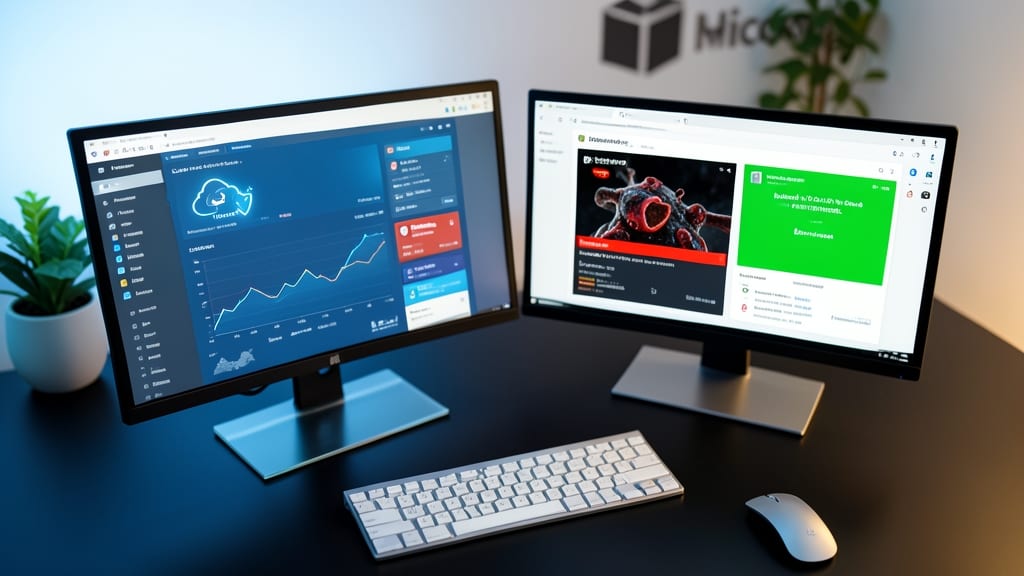
Tired of paying for antivirus software that still misses the latest threats? Microsoft Defender Antivirus with Cloud Protection delivers enterprise-grade security—free—by analyzing files against Microsoft’s global threat intelligence in real time.
This isn’t your grandfather’s antivirus. With AI-driven threat detection, it identifies zero-day exploits before they become widespread, while automatic sample matching compares files against a database of millions of known threats. Even better, it integrates seamlessly with Windows Security, requiring zero configuration beyond a simple toggle.
Perfect for home users, small businesses, or anyone who wants top-tier protection without the hassle (or cost) of third-party tools. Just enable it, and let Microsoft’s cloud-based defenses work silently in the background. ✨
Disable Unnecessary Startup Programs via Task Manager
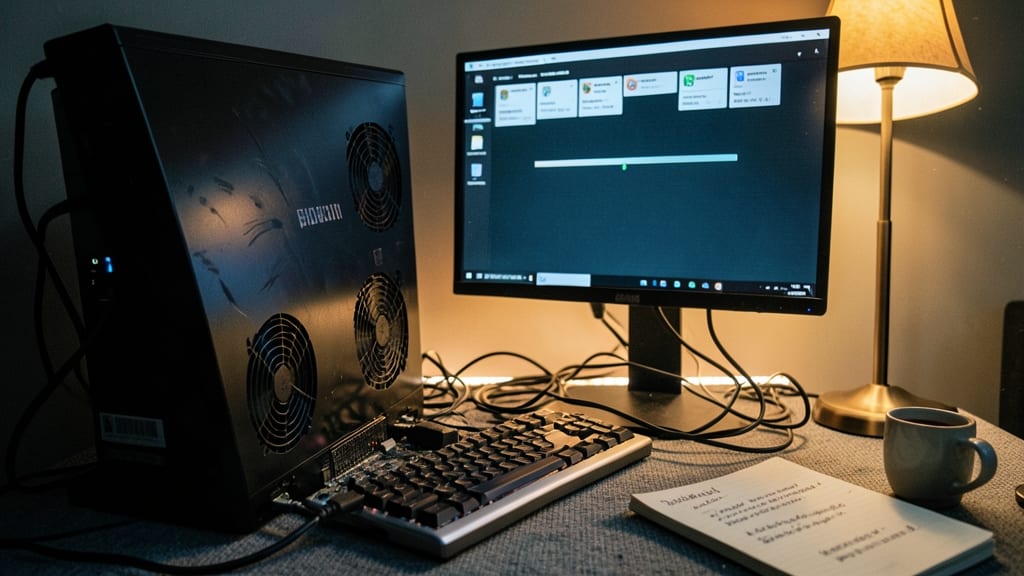
Ever noticed your PC booting slower than a dial-up connection? Many startup programs lurk in the background, not just slowing you down but also creating security vulnerabilities hackers can exploit. Every app that launches at startup expands your attack surface, giving cybercriminals more entry points.
Open Task Manager (Ctrl+Shift+Esc), navigate to the Startup tab, and disable programs you don’t need—like bloatware, ad loaders, or outdated utilities. This simple tweak can reduce boot times by 30-50% while eliminating potential backdoors. Focus on disabling anything with high impact but low necessity, like social media apps or cloud sync tools that run automatically.
Gamers and power users will love the instant performance boost, while security-conscious users benefit from a leaner attack surface. Check startup apps monthly—what you ignore today could become tomorrow’s security risk. ⚡
Enable Virtualization-Based Security (VBS) in Windows
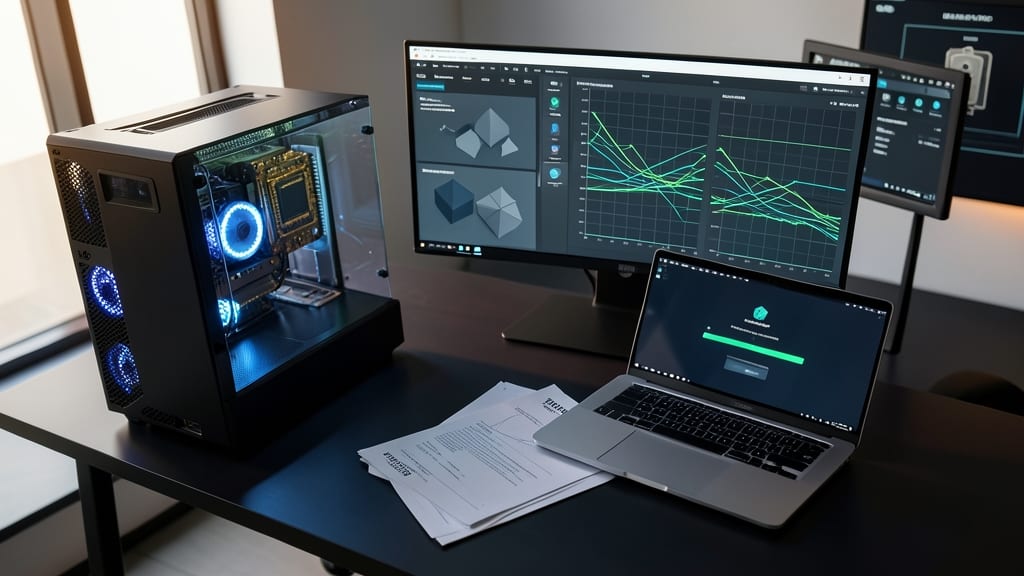
If you handle sensitive work files, financial data, or run business applications, Virtualization-Based Security (VBS) is your secret weapon. Unlike software-based defenses, VBS leverages your CPU’s built-in virtualization to create a hardware-enforced isolation layer, making it nearly impossible for malware to bypass even with admin privileges.
Windows 10 (version 1803+) and Windows 11 include VBS as part of Core Isolation, which splits your OS into two layers: a secure kernel and a protected user space. This stops threats like ransomware or rootkits from tampering with core system functions. The setup requires a modern CPU with SLAT support (Intel VT-x or AMD-V) and minimal performance overhead—just 1-2% slower in most tests.
Perfect for accountants, legal professionals, or developers working with proprietary code, VBS turns your PC into a fortress. Enable it via Windows Security > Device Security > Core Isolation, and rest easy knowing even the most determined malware has a harder time breaking through. 💪