
Tip & Trick
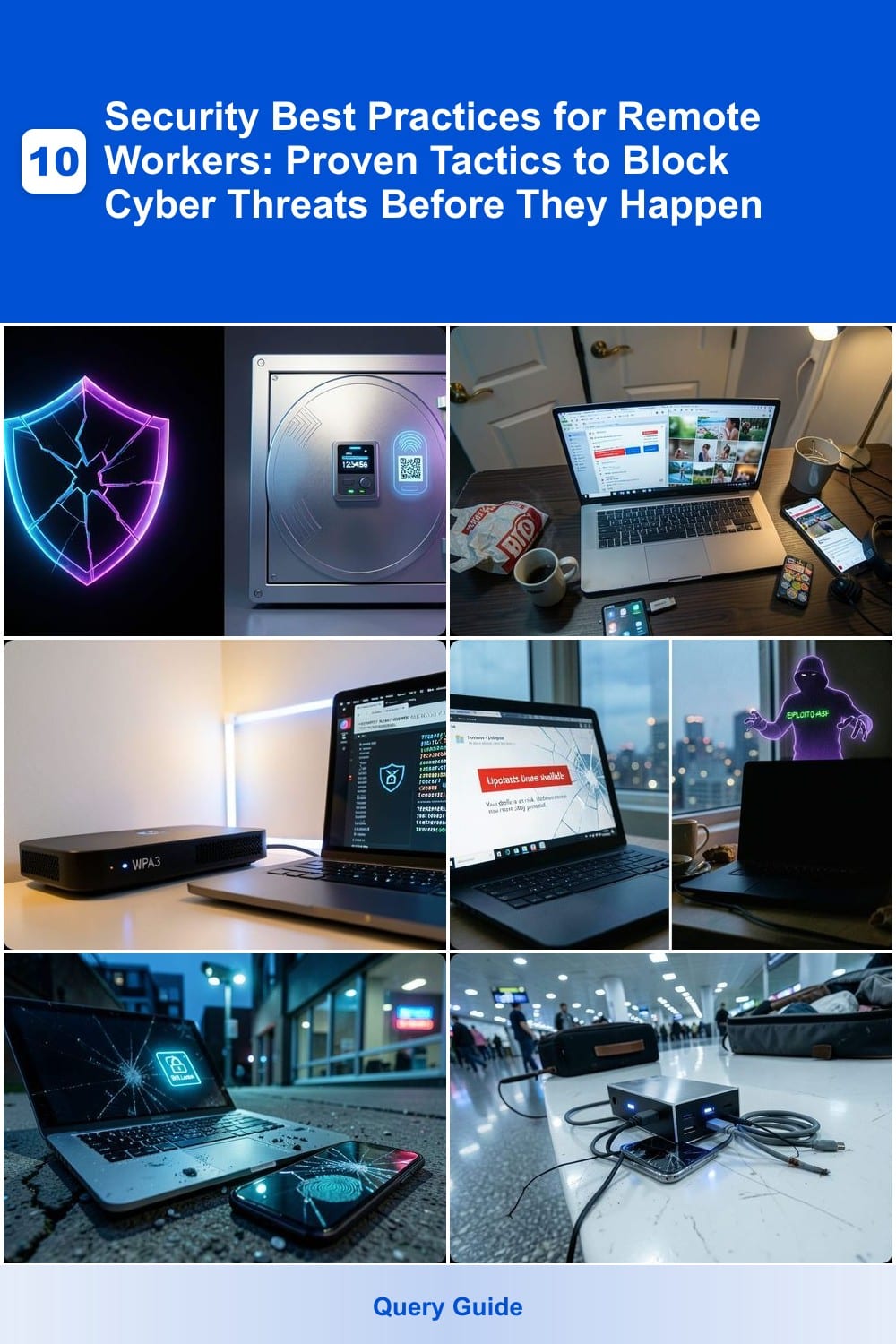
Remote work offers flexibility but exposes you to cyber threats like phishing, malware, and data breaches. These 10 security best practices—ranked by effectiveness—will fortify your digital defenses and keep your sensitive work information safe from hackers.
Enable Multi-Factor Authentication Everywhere
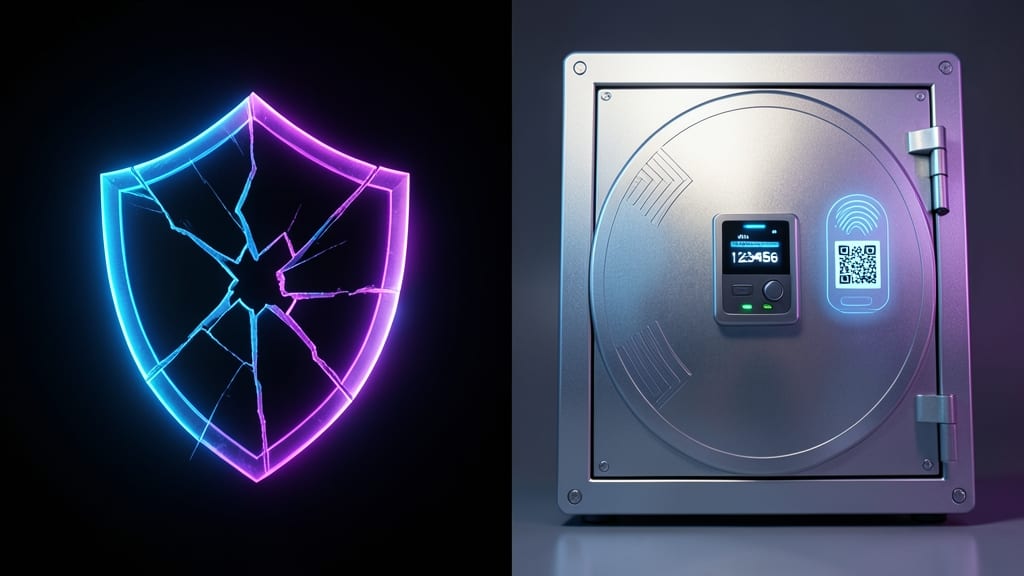
Even if your passwords are leaked in a data breach, multi-factor authentication (MFA) acts as an impenetrable second shield. This isn’t just about adding complexity—it’s about making unauthorized access nearly impossible, even for cybercriminals with stolen credentials.
Most modern platforms now support time-based one-time passwords (TOTP) via apps like Google Authenticator or SMS codes, but hardware keys (like YubiKey) offer the strongest protection. Enable MFA for email, banking, and work accounts first—these are prime targets for attackers. The setup takes minutes, and the peace of mind is priceless.
This is non-negotiable for remote workers handling sensitive data. Start with your most critical accounts today—you’ll thank yourself if (when) the next breach hits the news. 💪
Use a Dedicated Work Device
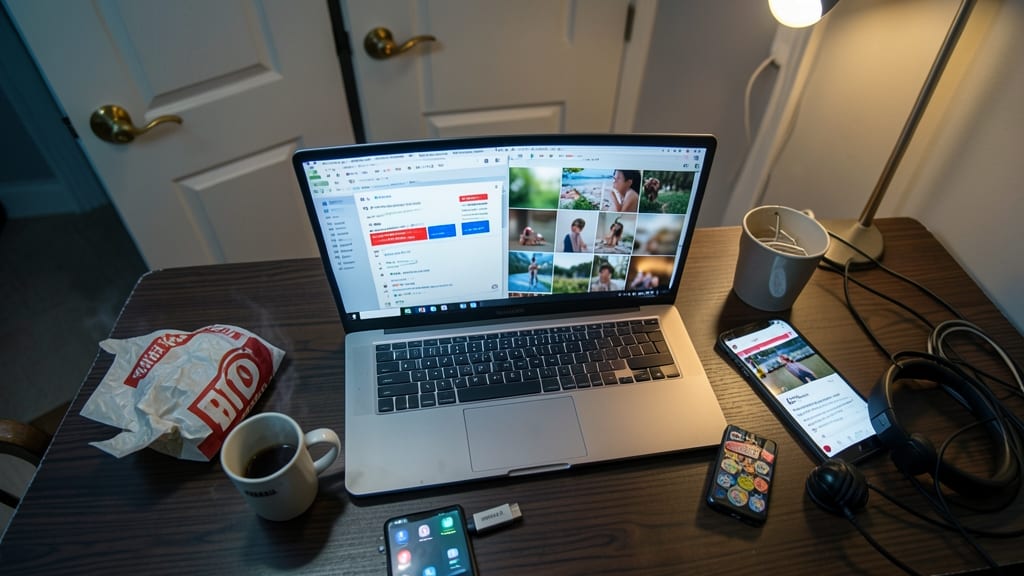
Mixing work and personal files on the same device is like leaving your front door unlocked—any breach risks exposing client data, financial records, or trade secrets. A dedicated work device creates a clear boundary, ensuring company policies and security tools (like full-disk encryption and remote wipe capabilities) apply only to professional data.
Most companies provide company-managed laptops with pre-installed security software, automatic updates, and IT support. For those without one, a secondary device (even an older model) with a separate admin account and BitLocker/FileVault encryption works. This isolation stops malware from jumping between personal photos and confidential spreadsheets.
This approach is non-negotiable for roles in finance, healthcare, or legal—but it’s smart for anyone who’s ever panicked after misplacing a laptop. 💻
Secure Your Home Wi-Fi Network
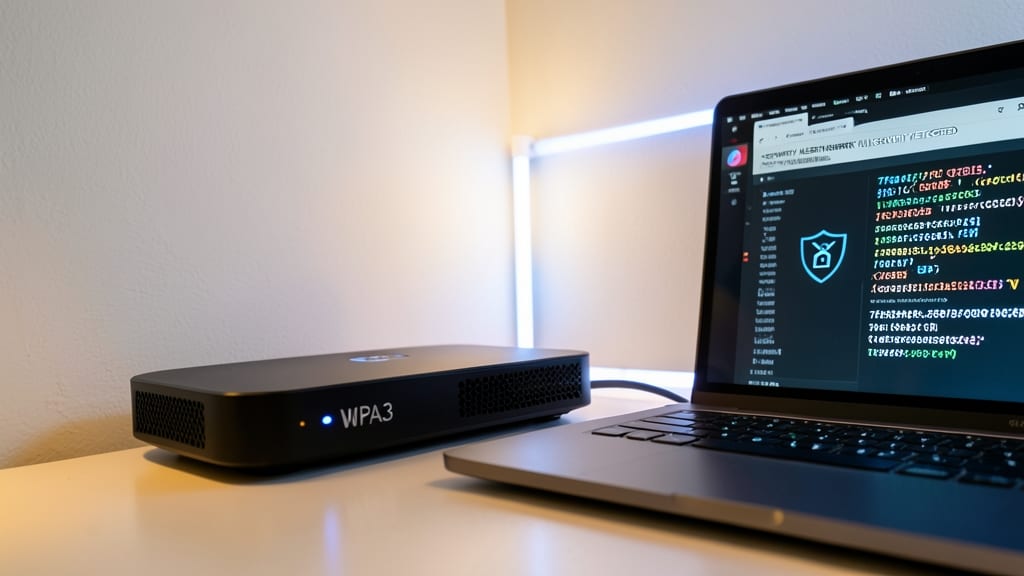
Your home Wi-Fi isn’t just a convenience—it’s often the first line of defense against cyberattacks when working remotely. A weak password or outdated encryption can leave you vulnerable to eavesdropping, data theft, or even becoming part of a botnet without your knowledge.
Start by upgrading to WPA3 encryption (the latest standard) and creating a 20+ character password with a mix of letters, numbers, and symbols. Disable WPS (it’s insecure) and rename your network from the default SSID—this makes it harder for attackers to identify vulnerable routers. For extra security, enable MAC address filtering to restrict access only to trusted devices. Tools like OpenVPN or WireGuard can further encrypt your traffic if you’re on public networks.
This is non-negotiable for digital nomads, freelancers, or anyone accessing work files from shared spaces. A secure Wi-Fi setup is your first defense when physical security can’t be guaranteed. 💪
Regularly Update All Software
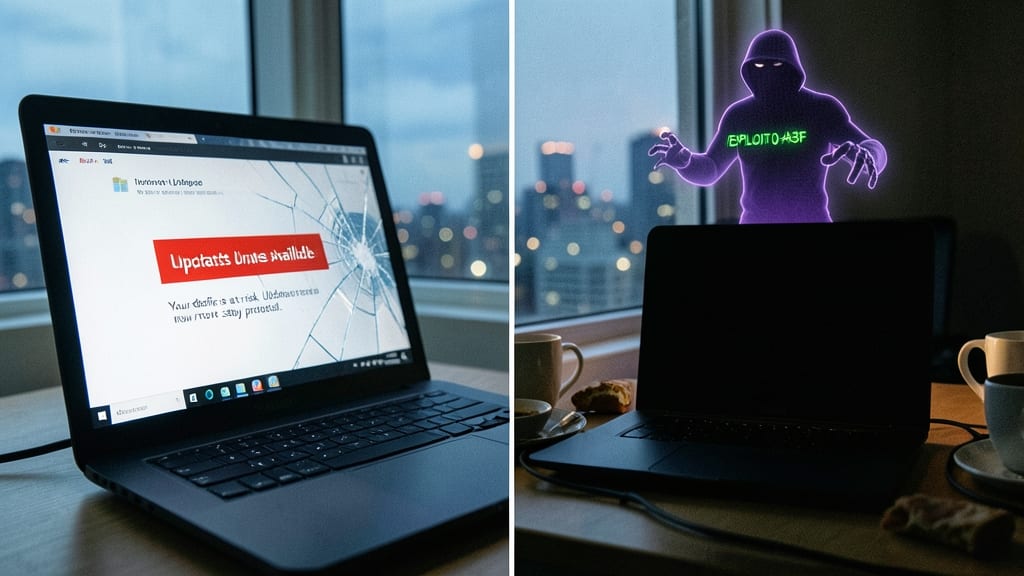
Cybercriminals exploit unpatched software within hours of vulnerabilities being discovered—yet many remote workers ignore update prompts. The average software update closes 3-5 security flaws, including zero-day exploits that could grant hackers full system access.
Enable automatic updates for your operating system (Windows, macOS, or Linux), web browsers (Chrome, Firefox, Edge), and productivity apps (Microsoft Office, Slack, Zoom). Most modern systems support zero-configuration updates—just verify they’re enabled in settings. For enterprise tools, use patch management systems like WSUS or Jamf to enforce compliance across teams.
This is non-negotiable for anyone handling client data, financial records, or healthcare information. Even casual users benefit—70% of malware infections leverage outdated software. Set a monthly reminder to check for pending updates. ⚡
Encrypt Sensitive Work Files

Losing a laptop or phone isn’t just a hardware headache—it’s a data disaster if confidential files aren’t protected. Encryption turns sensitive documents into unreadable code unless unlocked with the right credentials, making them useless to thieves or prying eyes.
Tools like Microsoft BitLocker (Windows) or FileVault (Mac) offer built-in encryption with AES-256-bit security—industry-standard protection that even government agencies trust. For granular control, VeraCrypt lets you encrypt individual folders or entire drives with zero-config setup. Cloud storage? Services like Box and Dropbox support encryption at rest, while Proton Drive adds end-to-end protection for extra peace of mind.
This is non-negotiable for roles handling HIPAA-compliant patient records, financial statements, or legal contracts. Even a single lost device could trigger costly fines or lawsuits—so encrypt before it’s too late. ✨
Avoid Public USB Charging Stations
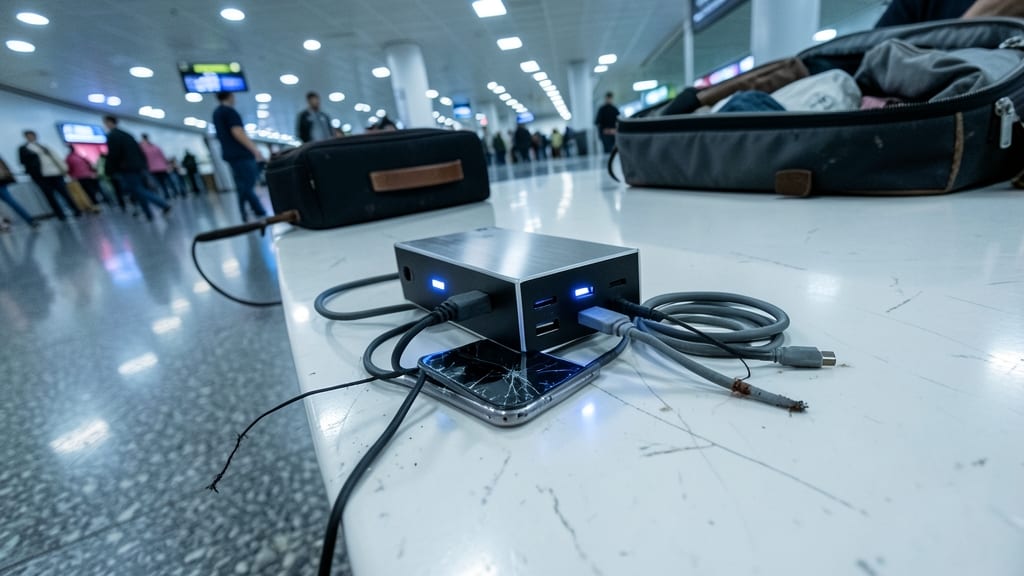
That free USB charging port at the airport or hotel lobby might seem like a lifesaver—but it could also be a juice jacking trap. Attackers use compromised cables to install malware or steal data when you plug in your device, a risk that affects over 1 in 5 travelers unknowingly.
Always carry a power bank or use your device’s built-in battery instead. If you must use public charging, opt for USB-C power delivery ports (less vulnerable than micro-USB) or a charging-only cable that blocks data transfer. Even better, disable USB debugging and auto-install features on your phone before you travel.
This habit is especially critical for remote workers handling client data or travelers with sensitive work files—one wrong plug could expose months of confidential information. ⚡
Train Employees to Spot Phishing Emails
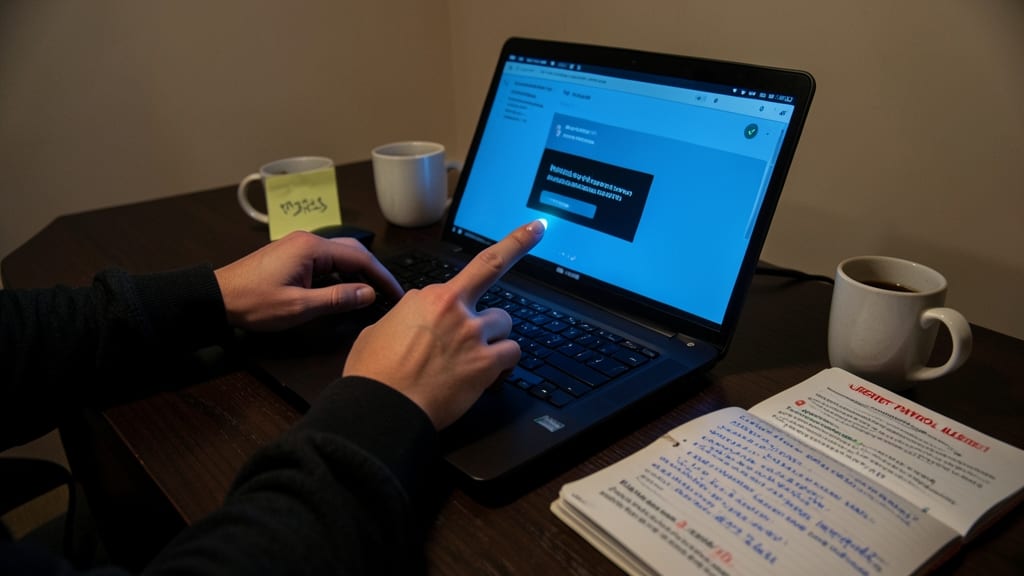
Cybercriminals don’t need sophisticated tools—they just need one employee to click a malicious link. Phishing emails account for 90% of all cyberattacks, making human error the biggest security risk in remote work. The solution? Proactive training that turns employees into your first line of defense.
Platforms like KnowBe4 or PhishMe offer simulated phishing tests that mimic real attacks, while short training videos (like those from Google’s Security Checkup) teach employees to spot red flags like urgent language, mismatched URLs, or suspicious sender addresses. These tools provide real-time feedback and track progress, reducing vulnerabilities by up to 70% in just a few months.
This is non-negotiable for teams handling client data, financial records, or healthcare information—where a single click could trigger a breach. Start with a monthly phishing test and pair it with a 10-minute training session to keep skills sharp. 💡
Use a Virtual Private Network
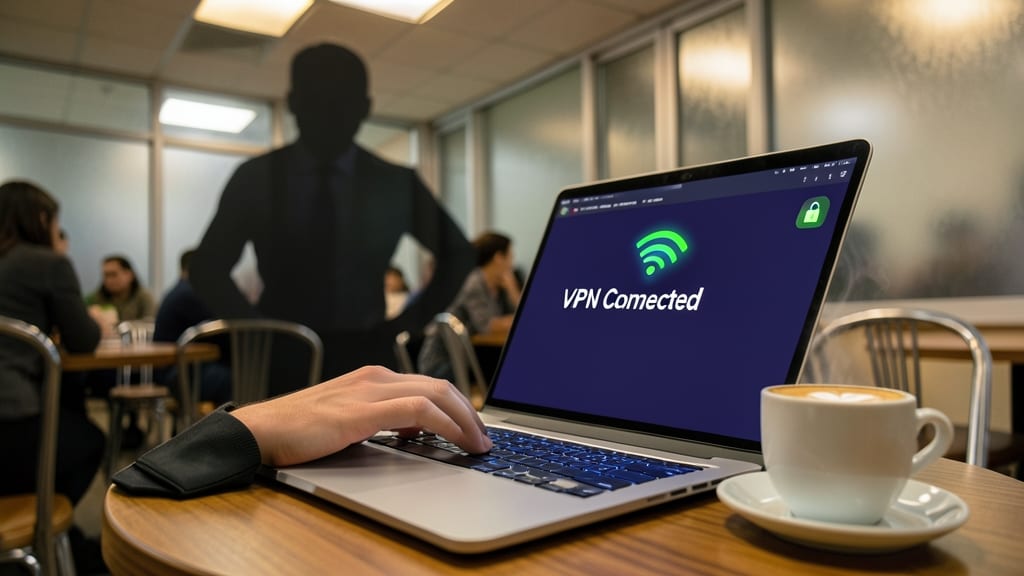
Public Wi-Fi is convenient but leaves your data exposed to hackers lurking on the same network. A VPN (Virtual Private Network) creates an encrypted tunnel between your device and the internet, shielding your activity from prying eyes—whether you're working from a café, airport, or a country with restricted internet access.
Top-tier VPNs like NordVPN or ProtonVPN offer military-grade encryption (AES-256), zero-log policies, and servers in multiple countries to bypass geo-blocks. They also mask your real IP address, making it nearly impossible for ISPs or cybercriminals to track your online behavior. Many include kill switches—a feature that cuts your internet if the VPN drops, preventing accidental data leaks.
This is non-negotiable for remote workers in regions with strict censorship (like China or Iran) or those handling sensitive client data. Even if you're just browsing, a VPN adds an extra layer of privacy that’s worth the small speed trade-off. ✨
Implement a Password Manager
Credential stuffing attacks exploit reused passwords—once hackers crack one account, they try the same password everywhere. A password manager like Bitwarden or 1Password eliminates this risk by generating and storing unique, 20-character passwords for every site, so a breach in one place doesn’t compromise your entire digital life.
These tools also auto-fill logins, sync across devices, and encrypt your vault with AES-256 encryption—the same standard used by banks. Features like two-factor authentication for the manager itself and secure sharing for teams add extra layers of protection. Most offer free tiers with unlimited password storage, making them accessible for everyone.
Remote workers, freelancers, and anyone juggling multiple accounts will benefit most—especially those in finance, healthcare, or any field handling sensitive data. With one click, you’ll never stress over remembering passwords again. ✨
Monitor and Log Remote Access
If your company’s remote access logs look like a black box—no visibility, no accountability—it’s time to flip the script. Tools like Splunk or Microsoft Defender for Cloud Apps transform raw connection data into actionable insights, letting you spot anomalies before they become breaches.
These platforms log who accessed what, when, and from where, with real-time alerts for suspicious logins (e.g., midnight access from a new country). They also generate compliance reports for GDPR, HIPAA, or SOC 2 audits, so you’re never scrambling to prove security posture. For IT teams, automated alerts for failed login attempts or unusual activity reduce response times by up to 70%.
Perfect for IT admins managing hybrid workforces or compliance officers in regulated industries, these tools turn passive monitoring into proactive defense. 💻