
Software
Microsoft Edge is packed with hidden features that can transform your browsing experience—boosting speed, enhancing security, and simplifying daily tasks. These seven expert tips will help you unlock Edge’s full potential and navigate the web like a pro.
Enable Edge’s Immersive Reader for Focused Reading
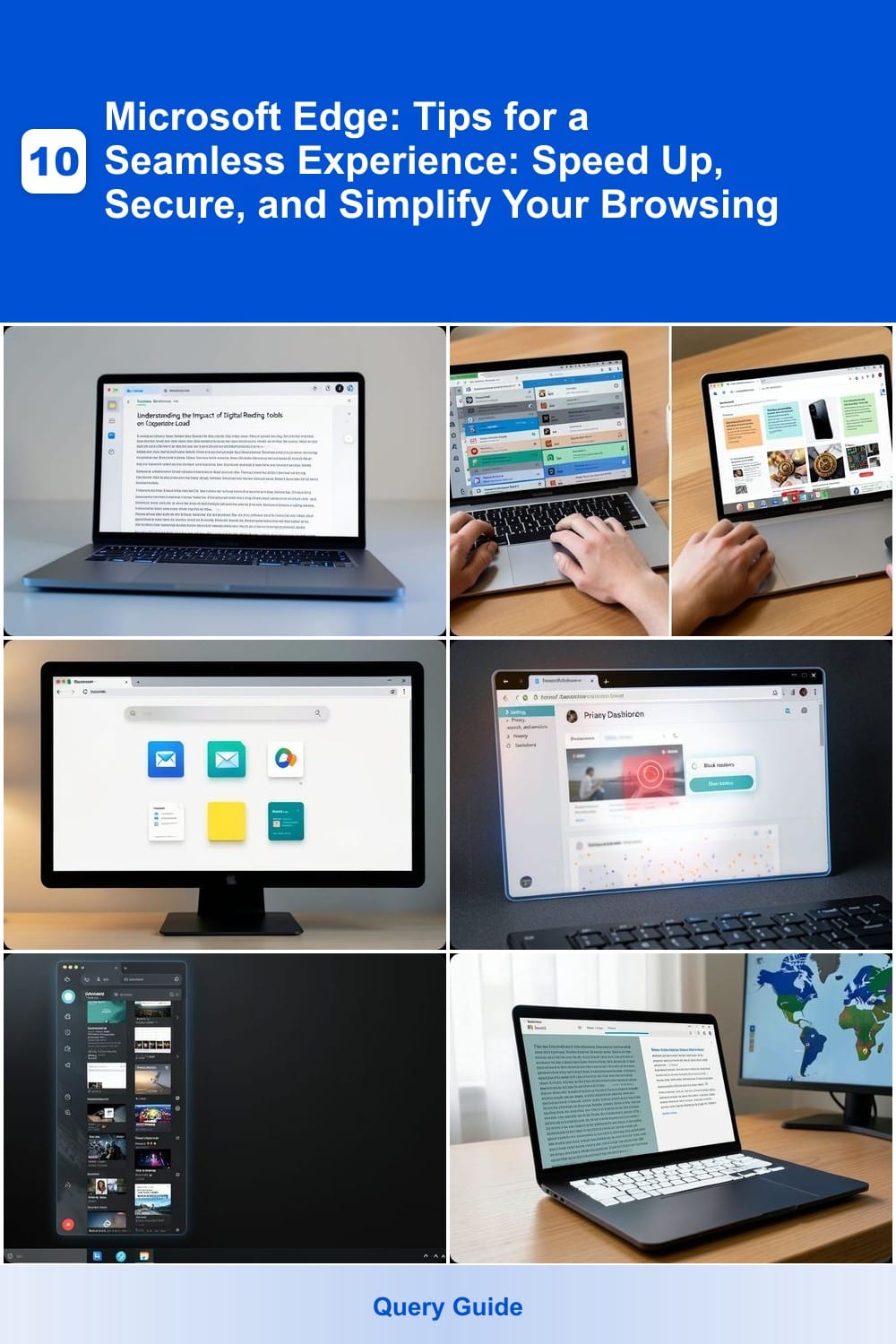
Struggling to focus while reading long articles or documents? Microsoft Edge’s Immersive Reader is a game-changer for anyone drowning in dense text. This built-in tool transforms cluttered layouts into a clean, distraction-free reading experience with customizable fonts, spacing, and even a text-to-speech feature.
With just a click, you can adjust font size, switch to high-contrast colors, or highlight line-by-line to follow along. The text-to-speech option lets you listen to articles hands-free, perfect for commutes or multitasking. It also supports 12 languages, making it ideal for students, researchers, or professionals analyzing reports.
Best for students, writers, or anyone who reads extensively, Immersive Reader turns overwhelming content into an effortless experience. Give it a try—your eyes (and brain) will thank you. ✨
Use Collections to Organize Research Efficiently
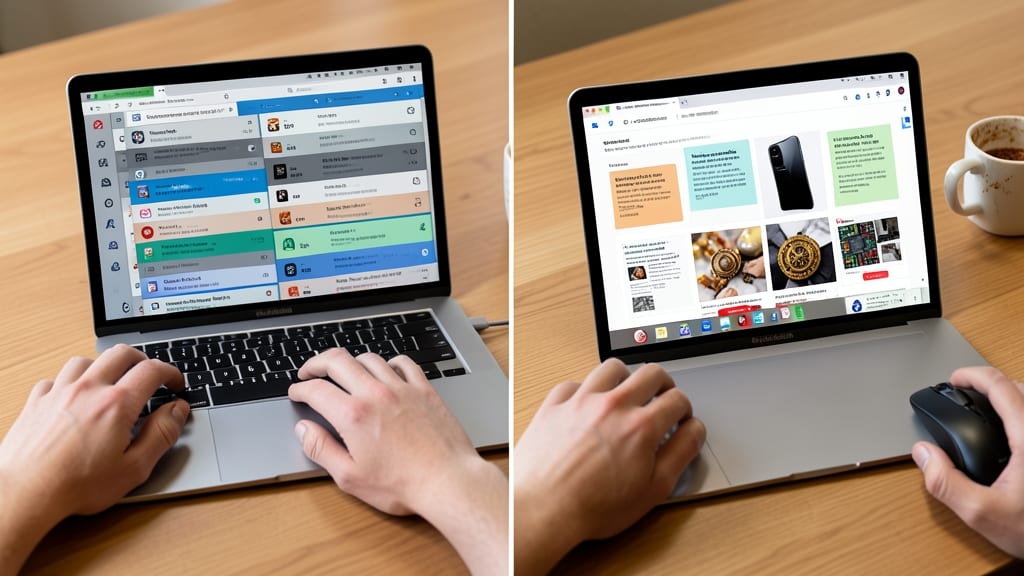
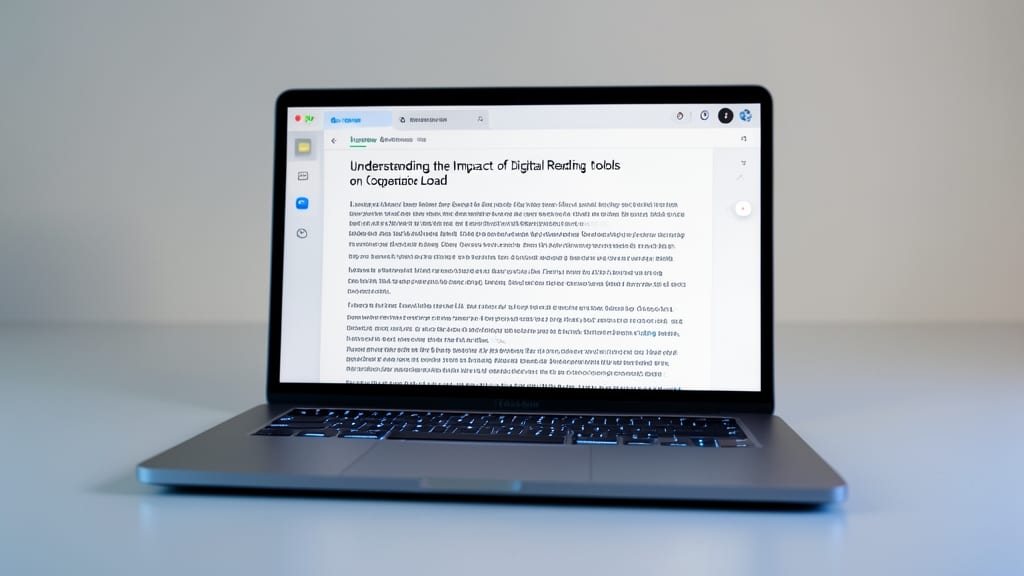
Drowning in tabs while researching? Microsoft Edge’s Collections feature turns chaos into clarity by letting you clip text, images, and links into visual boards—no more lost notes or forgotten sources.
With drag-and-drop organization, you can group related content (like articles, screenshots, or quotes) into folders, add sticky notes, and even highlight key details. The cross-device sync ensures your research stays accessible whether you’re on your laptop or tablet. Best of all, it integrates seamlessly with your existing workflow—just highlight text or right-click to save.
Perfect for students writing papers, developers tracking API docs, or anyone managing multiple projects. Say goodbye to tab overload and hello to effortless organization. ✨
Customize Your Start Page for Productivity
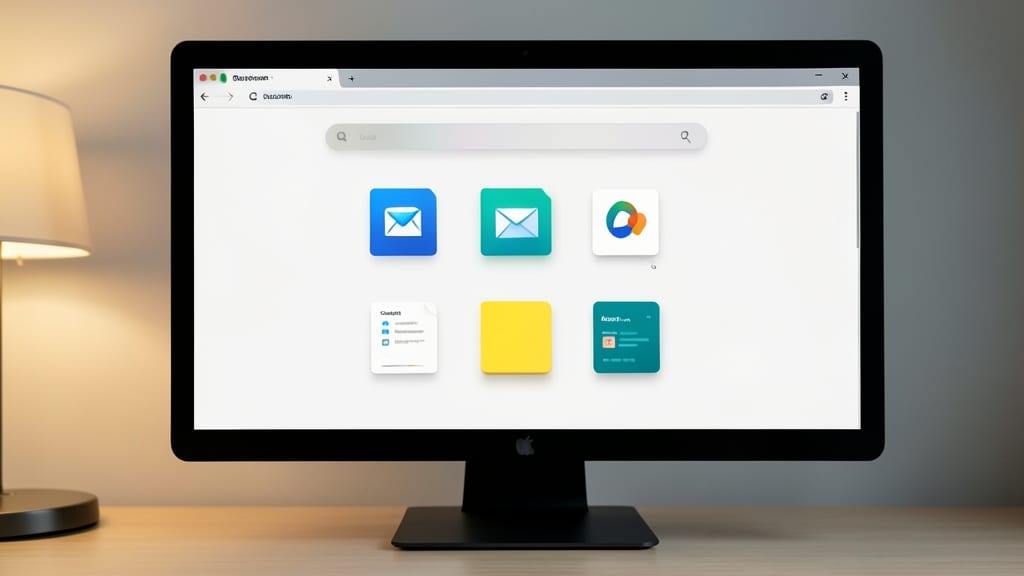
Tired of staring at a cluttered start page every time you open Edge? Customizing your homepage layout is one of the easiest ways to shave seconds off your daily routine—no more scrolling past irrelevant widgets or ads.
Edge lets you pin your most-used sites (like email, notes, or project tools) directly to the start page, while hiding everything else. Add widgets for weather, news, or even a to-do list to keep essential info front and center. The process takes just a few clicks: right-click any tile, choose "Pin to Start," and rearrange with drag-and-drop. For extra speed, enable the "Show most visited sites" toggle to auto-sort your frequent destinations.
This trick is ideal for busy professionals, students, or anyone who opens 10+ tabs daily. A clean, personalized start page means less decision fatigue and more time getting things done. ✨
Block Trackers with Privacy Dashboard
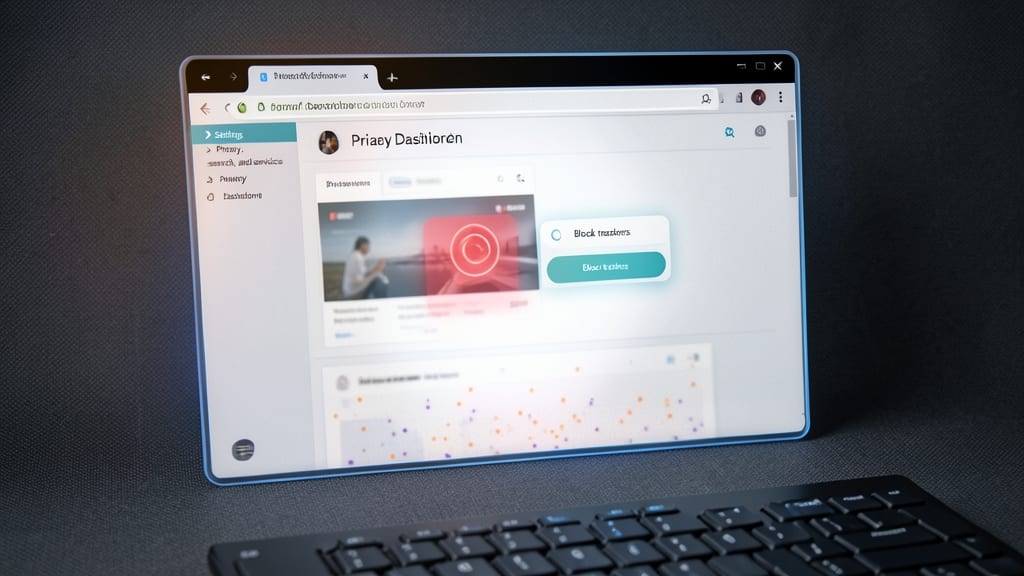
Worried about websites tracking your every move? Microsoft Edge’s Privacy Dashboard acts as your digital bodyguard, scanning pages for hidden trackers and giving you control with a single click.
Access it via Settings > Privacy, search, and services > Privacy Dashboard, where Edge highlights advertising trackers, social media widgets, and analytics scripts trying to monitor you. Block them all at once or customize rules—no tech skills required. The dashboard even shows how many trackers were blocked across your browsing sessions, giving you tangible proof of your improved privacy.
This feature is a game-changer for freelancers, journalists, or anyone handling sensitive info—it turns Edge into a fortress against data leaks without sacrificing usability. ⚡
Speed Up Browsing with Vertical Tabs
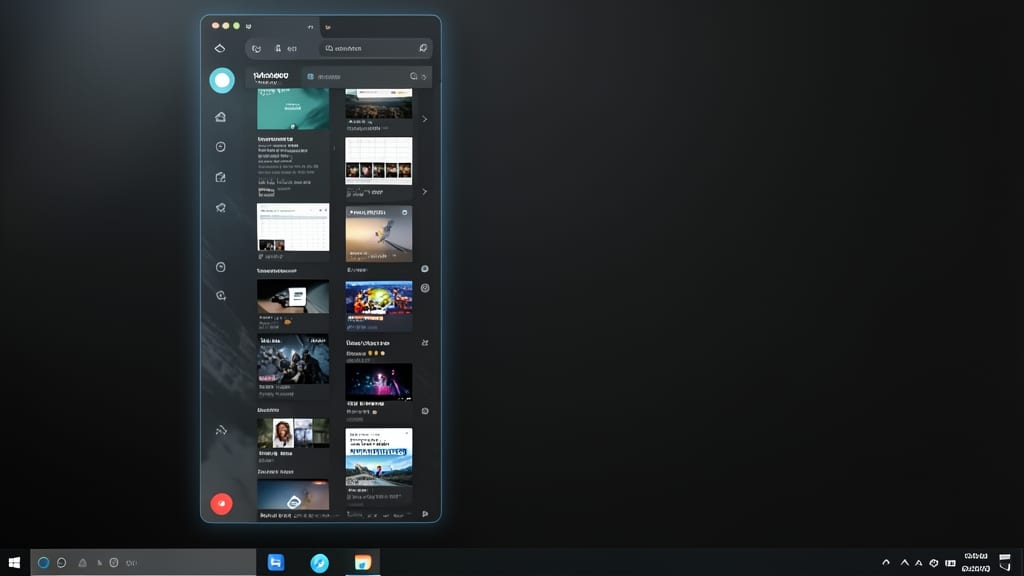
Tired of scrolling through endless horizontal tabs that clutter your screen? Microsoft Edge’s vertical tabs feature is a game-changer for multitaskers, turning your tab bar into a sleek, space-saving sidebar that keeps all your open pages visible at a glance.
With vertical tabs, you can pin frequently used sites, group related tabs together, and switch between them instantly—no more hunting through a crowded tab row. The feature also supports customizable layouts, letting you adjust the width and position of the tab bar to fit your workflow. Plus, it works seamlessly with Edge’s other tools, like Collections, for a truly unified browsing experience.
This is ideal for developers juggling code editors, researchers tracking multiple sources, or anyone who wants to reclaim screen real estate without sacrificing accessibility. Try it today and browse like a pro! ✨
Translate Webpages Instantly with AI
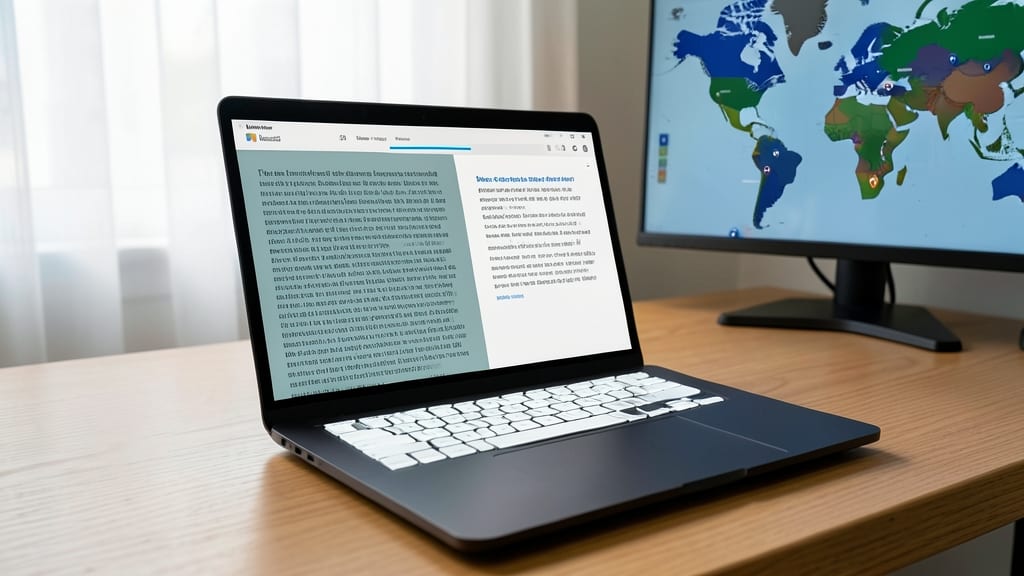
Stuck on a webpage in a language you don’t speak? Microsoft Edge’s built-in AI translator turns any webpage into a multilingual experience—no extra apps needed. With support for over 100 languages, it’s the ultimate tool for travelers, students, or professionals navigating non-native content.
Simply right-click any text and select "Translate to [Language]"—the translator highlights translated phrases in real time, making it easy to follow along. The AI even adapts to context, ensuring accurate translations for technical terms or slang. Best of all, it works offline for select languages, so you’re never left stranded without a connection.
Perfect for language learners practicing in their browser or travelers decoding menus and signs on the go. Say goodbye to juggling translation apps and hello to seamless multilingual browsing. ✨
Automate Repetitive Tasks with Edge Extensions
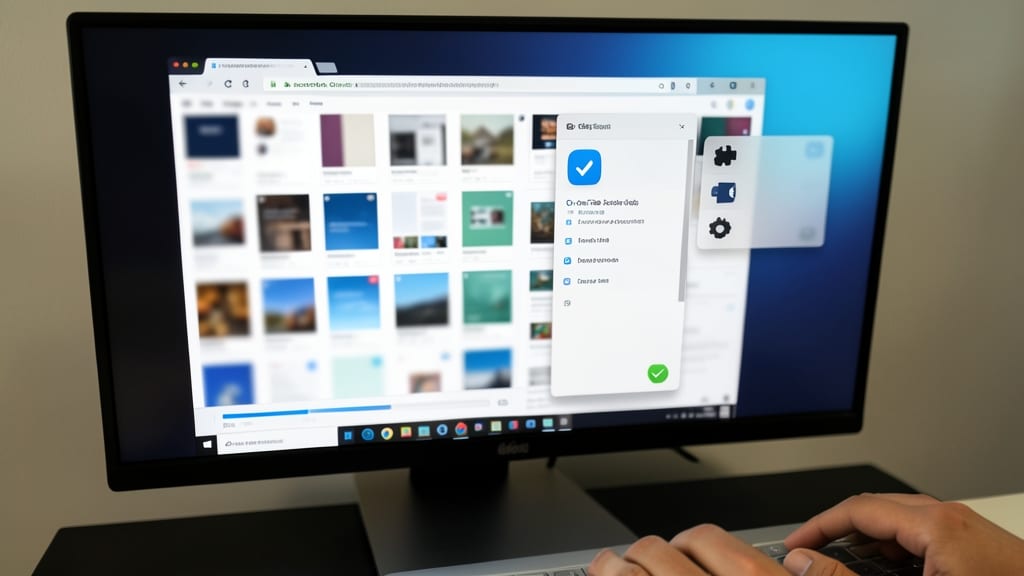
Tired of wasting time on manual tasks while browsing? Microsoft Edge’s extension library is your secret weapon—turning repetitive actions into automated workflows with just a few clicks.
Extensions like OneTab instantly convert dozens of open tabs into a single list, saving 90%+ memory usage while keeping everything accessible. Dark Reader reduces eye strain by automatically switching websites to dark mode, ideal for late-night sessions. For power users, tools like LastPass or Grammarly integrate seamlessly, eliminating password management headaches or grammar checks mid-sentence.
Perfect for developers, researchers, or anyone juggling multiple projects—these extensions cut down on friction so you can focus on what matters. Try one today and reclaim hours weekly! ⚡