
PowerPoint
Elevate your PowerPoint game with these 7 dynamic transition effects that keep your audience engaged and make your presentation unforgettable. Whether you're a student, professional, or speaker, smooth transitions can transform a basic slide deck into a polished, high-impact visual experience.
Fade Slide Transition for Elegant Flow
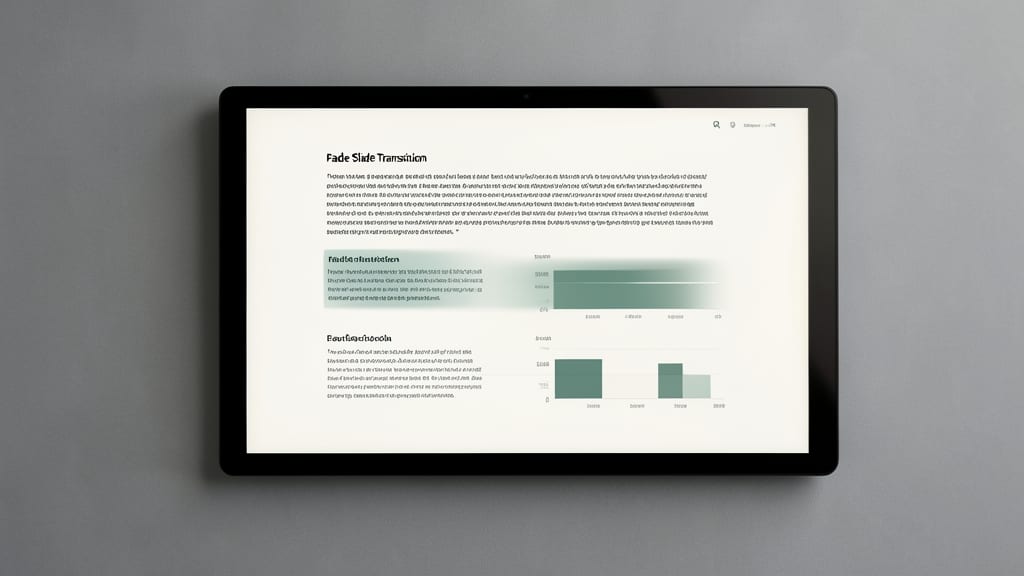
When your presentation demands subtle sophistication—like corporate pitches or investor decks—the Fade Slide Transition delivers effortless elegance. This classic effect dissolves one slide into the next with a smooth, zero-distraction flow, ensuring your audience stays focused on your message, not the visuals.
Available in PowerPoint 2010 and later, the Fade transition works seamlessly across Windows and Mac versions. You can adjust the speed (from 0.1s to 5s) and even add a sound effect (though silence is often best for professionalism). Its minimalist approach makes it ideal for slides with clean layouts, minimal text, and high-impact visuals—think infographics or key data points.
Perfect for executives, educators, and consultants, this transition subtly reinforces professionalism without overpowering your content. For a polished, distraction-free presentation, it’s the go-to choice. ✨
Morph Transition for Seamless Data Visualizations
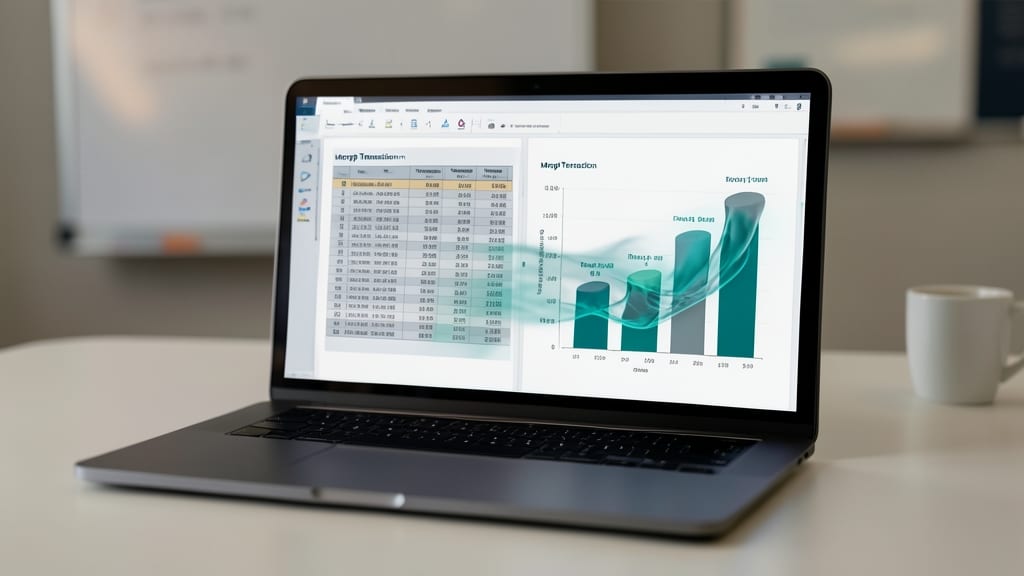
When your slides are packed with graphs, charts, or data tables, the Morph Transition becomes your secret weapon. Unlike abrupt cuts or flashy animations, this effect smoothly interpolates between slides—blending shapes, colors, and data points in real time to preserve visual continuity.
PowerPoint’s Morph works best with objects that share similar structures (e.g., bar charts evolving into pie charts). You can adjust the transition speed and even lock slide content to prevent misalignment. For analysts or educators, this keeps audiences focused on the data—not the distraction of a jarring shift.
Ideal for financial reports, research presentations, or dashboards, Morph transforms static numbers into dynamic insights. Just avoid overusing it with complex layouts—less is more for clarity. ✨
Push Transition for Dynamic Storytelling
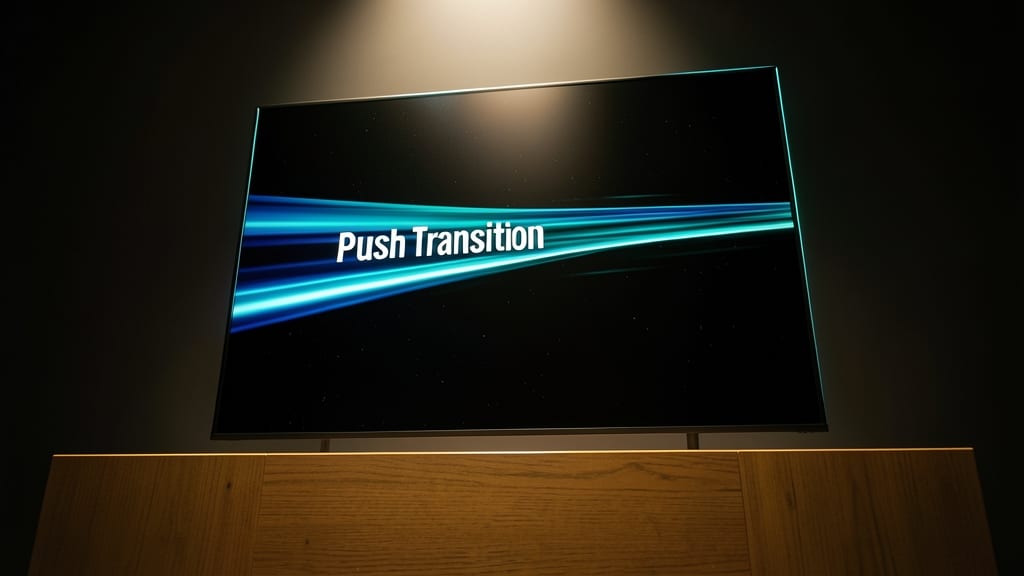
Want to turn your presentation into a cinematic experience? The Push Transition delivers that exact energy by sliding slides in from one side—like a director’s deliberate camera move. Unlike subtle fades, this effect commands attention with its directional motion, making it perfect for storytelling arcs or creative pitches where pacing matters.
You can choose left, right, up, or down for the push direction, and adjust the speed to control the drama. Pair it with bold visuals (think high-contrast backgrounds or dynamic typography) to amplify the impact. Pro tip: Use it sparingly—2-3 slides max per section—to avoid overwhelming your audience.
Ideal for storytellers, designers, and marketers, this transition works best when you want to guide your audience’s focus—like revealing a climax or emphasizing a key takeaway. Just don’t overdo it in formal settings! ✨
Zoom Transition for Highlighting Key Slides
Need to make a specific slide feel like the climax of your presentation? The Zoom transition delivers that cinematic punch by dramatically zooming in from a tiny thumbnail to full-screen focus. Unlike subtle fades or smooth morphs, this effect creates genuine excitement—perfect for product reveals, keynote highlights, or any moment you want your audience leaning forward.
Customize the zoom speed (from slow and deliberate to rapid) and direction (inward or outward) to match your energy level. Works seamlessly in PowerPoint 2016 and later, with no compatibility issues across Windows or Mac. Pro tip: Pair it with a sound effect (like a subtle "whoosh") for extra impact without overpowering your voice.
Ideal for executives pitching ideas or creative teams launching projects, this transition turns passive slides into active storytelling moments. Just don’t overuse it—save it for slides that deserve the spotlight. ✨
Slide Split Transition for Interactive Presentations
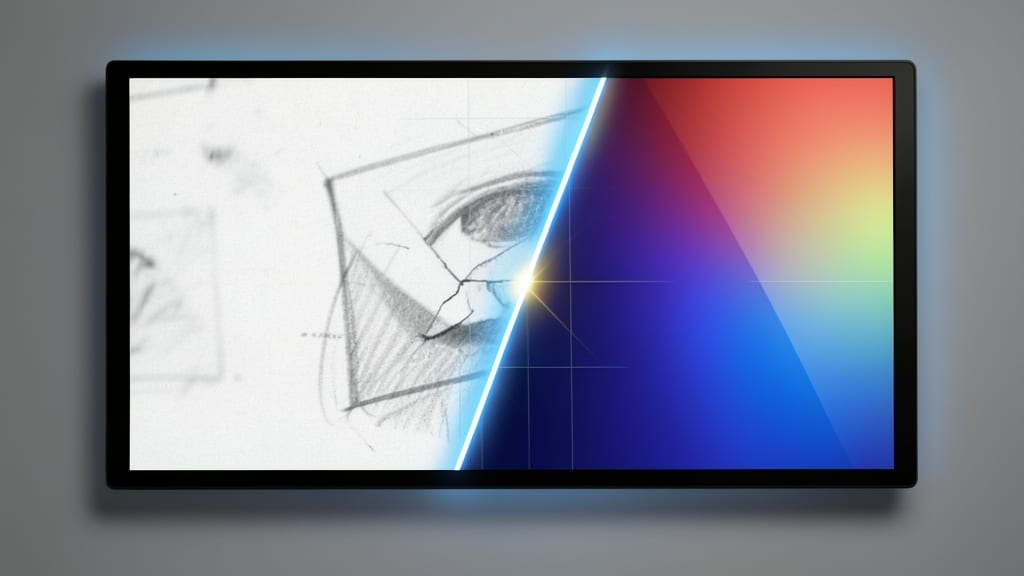
Need to compare two ideas, showcase before-and-after results, or spark a discussion in your presentation? The Slide Split Transition turns your deck into an interactive experience by dividing the screen into two dynamic halves.
This transition isn’t just visually striking—it’s functional. You can split slides vertically or horizontally, making it ideal for side-by-side comparisons (like design mockups, data contrasts, or process workflows). The effect is smooth and customizable, with adjustable timing to match your pacing. For teams collaborating in real-time, it’s a game-changer for brainstorming sessions or client reviews.
Perfect for educators, marketers, or project managers who want to engage audiences without overwhelming them. Use it to highlight contrasts, reveal solutions, or invite participation—your presentation just got a collaborative upgrade. ✨
Wipe Transition for Creative Themed Decks
Turn your artistic presentations into cinematic experiences with the Wipe Transition—a sleek, directional effect that lets you customize movement (left, right, up, or down) for a polished, intentional flow. Unlike generic fades or pushes, this transition excels at reinforcing thematic elements, like a right-to-left wipe for a "progress" narrative or a vertical wipe for layered storytelling.
PowerPoint’s built-in Wipe Transition offers four direction options and pairs well with gradient backgrounds or textured overlays to enhance visual storytelling. The effect is subtle yet impactful, avoiding the distraction of overly flashy animations while keeping audiences engaged through deliberate motion.
Perfect for artists, designers, and educators crafting themed decks—think gallery walkthroughs, creative portfolios, or educational modules where slide direction reinforces content. It’s the ideal bridge between slides when you want control without sacrificing creativity. ✨
Random Bars Transition for Playful Energy
Tired of predictable transitions? The Random Bars effect brings unexpected energy to your slides with its chaotic yet controlled bar animation. This isn’t just a transition—it’s a visual spark that keeps younger audiences or creative teams engaged during brainstorming sessions.
Here’s how it works: colorful bars burst across the screen in random patterns, creating a dynamic shift between slides. You can adjust the speed and direction to match your vibe, ensuring it never feels repetitive. The effect pairs perfectly with bright, modern themes or abstract backgrounds to amplify creativity.
Perfect for workshops, interactive sessions, or youth-focused presentations, this transition turns routine slides into an experience. Who says presentations can’t be fun? ✨